

If you haven’t done so, please refer to the In-Car Payments for an in-depth overview and instructions on how to set up your account.
Overview
To have the full experience, we will need a few components:- Somewhere where your users will manage their payment methods. This is for example your driver payment profile
- A consumer application, leveraging the Wallet Consumer SDK. These are the apps collecting payments through your wallet
- A wallet application, leveraging the In-Car Wallet SDK. This is your branded wallet.
Your driver cards
The purpose of this document is not to teach you how to manage your users’ cards on file. For this purpose, we ship a small Docker image that lets you simulate that experience and get your cards into Commerce.You can always dive deeper into tokenization by referring to the Commerce Tokens documentation.
hellgate.env, with the following content:
hg_sndbx_XXX with your actual Commerce API key.
Now run the image with:
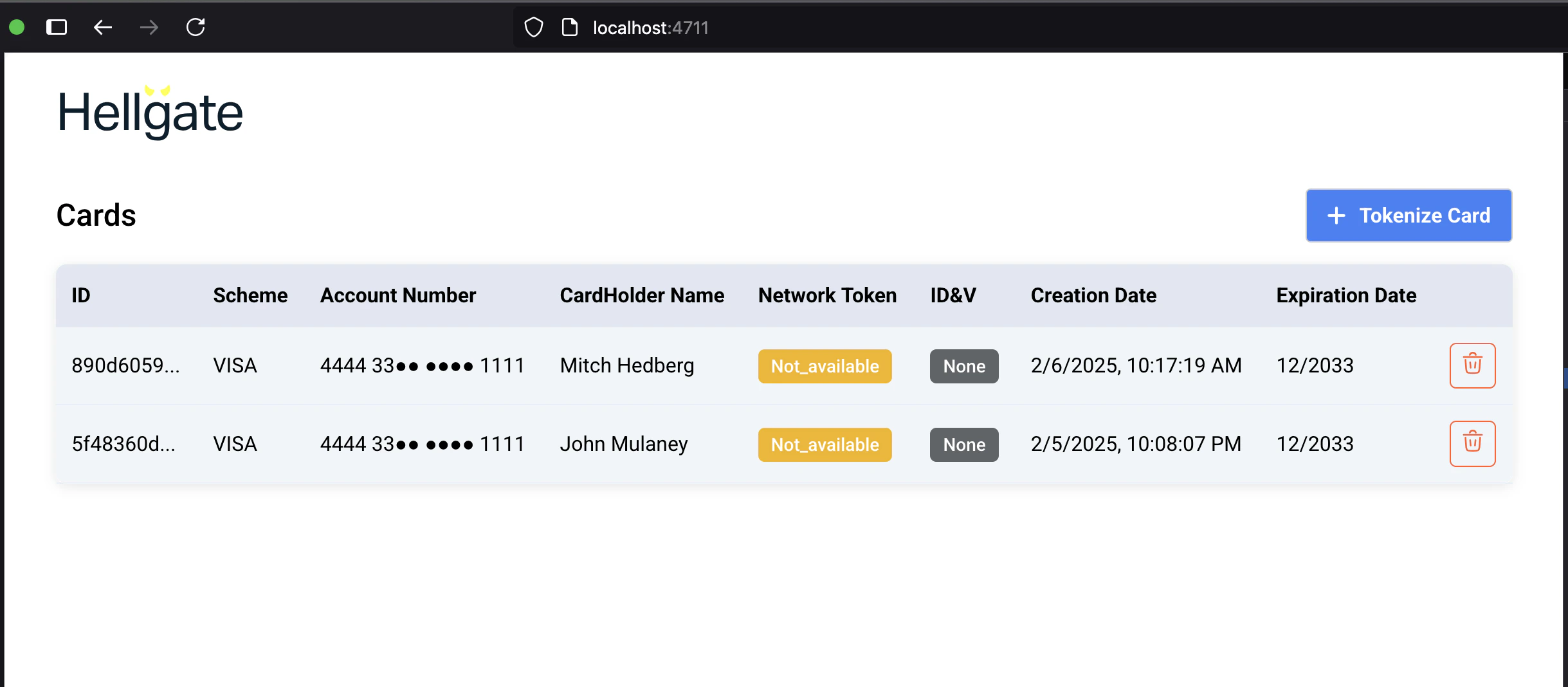
This app leverages the Commerce Web SDK and the Tokens Management API and is connected with your Commerce account. In a real-life scenario, a similar interface would only manage a specific user’s cards.
The consumer application
The consumer application is used by your users to buy products in their car. Here they can search for products, browse through them and add them to their shopping basket. To get started this can be as simple as a single button to trigger a predefined payment process. Such a simple app is described in detail in the In-Car Payments / Your app documentation. As you will receive the wallet-template archive you will be able to use it as a base for your consumer application. It is part of the android project and can be found in thesimpleshop folder, to get you started right away.
The wallet application
The wallet application is the one that will be used by your users to manage their payment methods, create device bindings and view their transactions. In the wallet-template package we provide you with a simple implementation of the wallet application.Setup variables
In theMyApplication.kt file there are multiple constants that should be set according to your Commerce account. The baseUrl can stay untouched for now as we are aiming to run against the sandbox environment. The API key should be set according to your Commerce account / wallet account. Device id and customer id should be set to unique values for your testing, in a production environment the device id need to be identical with the VIN of the car. The customer id also needs to unique in the context of your wallet account, so make sure to use a different one for each customer. The customer email and name can be set to artificial values for the sandbox testing but needs to be provided correctly in a production environment. The customer name should also be aligned with the cardholder name that you used for tokenization since the PaymentMethodClient will filter payment methods that are displayed in the app according to the customer name provided.
If you are not seeing any payment methods in the wallet app, please check the customer name you provided in the
MyApplication.kt file.