> ## Documentation Index
> Fetch the complete documentation index at: https://developer.hellgate.io/llms.txt
> Use this file to discover all available pages before exploring further.
# Capture a Payment
> Capture an authorized payment manually or automatically.
Commerce supports manual captures for authorized payments. The prerequisite for a manual capture is that the payment has been authorized (status `authorized`) and the flow automation is not automatically capturing the payment.
Each payment has a processing flow associated with it. The processing flow is defining how a payment is authorized with the processor. There are fundamentally two ways to process the payment:
## Automatic Capture
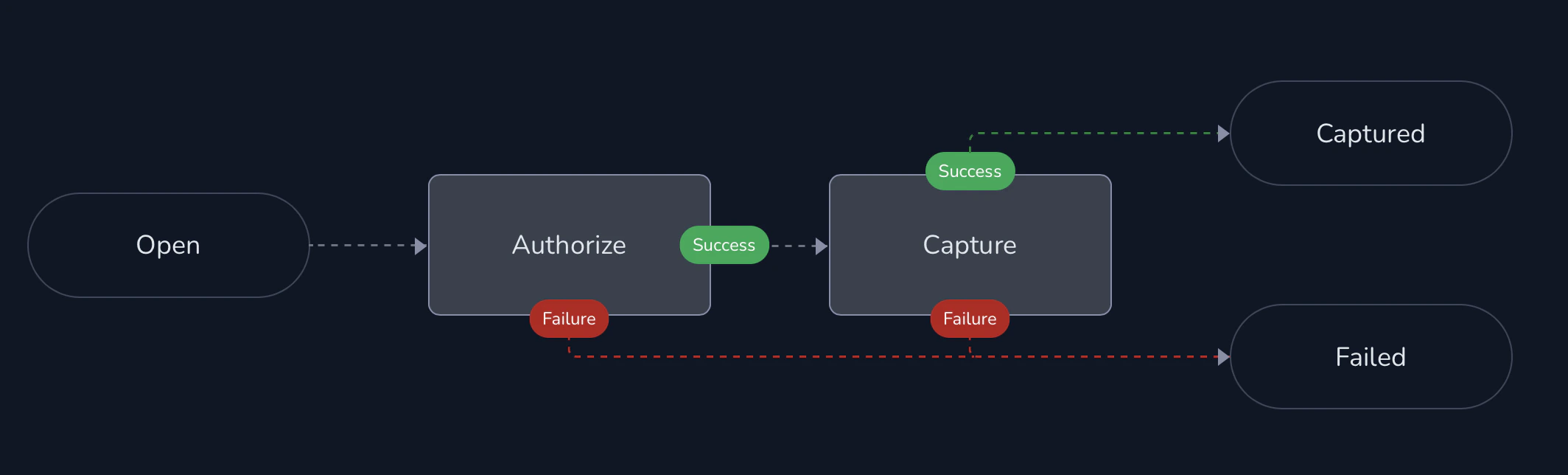
In case of an automatic capture flow, the payment is virtually skipping the `authorized` state and moves to `captured` directly. Virtually means in this context, that the payment is remaining in the state `processing` while it is already `authorized` and waiting that the `capture` completes. A manual capture is not possible in such a setup.
 ## Manual Capture
In the world of Commerce flows, the processing is a sequence of transactions which transition a payment from its `open` state to either `authorized` or `captured` state.
In order to allow a manual capture, the flow must stop the processing after successful authorization. The following flow graphs shows the simplest possible design for it:
## Manual Capture
In the world of Commerce flows, the processing is a sequence of transactions which transition a payment from its `open` state to either `authorized` or `captured` state.
In order to allow a manual capture, the flow must stop the processing after successful authorization. The following flow graphs shows the simplest possible design for it:
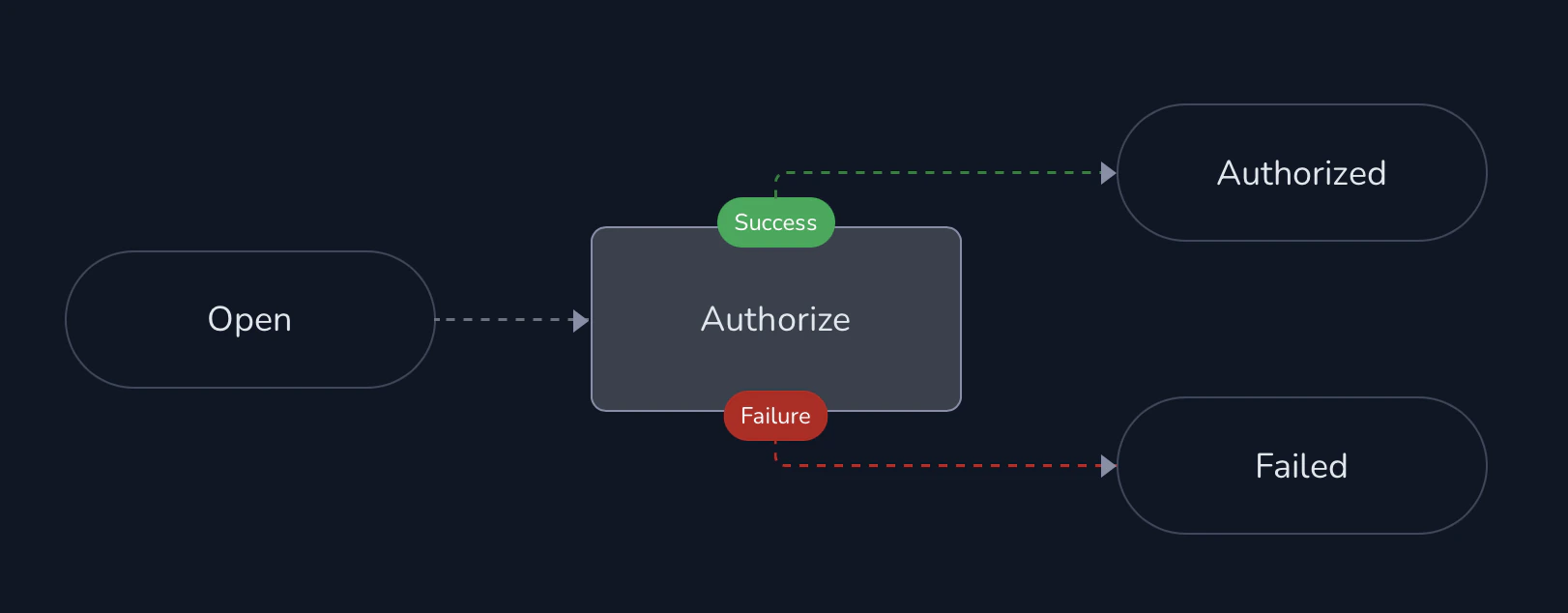 The payment will be in `authorized` state in case of a success, and is ready to receive a manual capture call.
### Request
Find the API documentation for the request [here](/products/commerce/v2/api-reference/payments_modifications/capture).
```text theme={null}
POST /payments/{payment_id}/capture
```
The payload for this request is very simple as it actually only requires a `reference` in case a full capture is intended. In case a partial capture is requested, the corresponding `amount` and `currency_code` has to be given.
Partial Capture Request Body
```json theme={null}
{
"amount": 800,
"currency_code": "EUR",
"reference": "Partial capture order #12345"
}
```
Commerce does not support multiple captures.
### Response
In response to the capture request the payment will be in `capturing` state until it is either `captured` or `failed`.
```json theme={null}
{
"id": "54ba1fdb-7e4e-402b-aebb-66f9d5345cf8",
"amount": {
"requested": 1000,
"authorized": 1000
},
"created_at": "2023-10-10T00:00:00Z",
"currency_code": "EUR",
"flow": "e-commerce flow",
"reference": "Order #12345",
"status": "capturing",
"source": {
"type": "card",
"cardholder_name": "Bob Holder",
"expiry_month": 12,
"expiry_year": 2030,
"masked_account_number": "424242XXXXXX4242",
"pan_type": "FPAN"
},
"use_case": "ONE_OFF"
}
```
When the capture is completed, successfully the payment will show the respective amount in its payload:
```json theme={null}
{
...,
"amount": {
"requested": 1000,
"authorized": 1000,
"captured": 800
},
"status": "captured"
}
```
The payment will be in `authorized` state in case of a success, and is ready to receive a manual capture call.
### Request
Find the API documentation for the request [here](/products/commerce/v2/api-reference/payments_modifications/capture).
```text theme={null}
POST /payments/{payment_id}/capture
```
The payload for this request is very simple as it actually only requires a `reference` in case a full capture is intended. In case a partial capture is requested, the corresponding `amount` and `currency_code` has to be given.
Partial Capture Request Body
```json theme={null}
{
"amount": 800,
"currency_code": "EUR",
"reference": "Partial capture order #12345"
}
```
Commerce does not support multiple captures.
### Response
In response to the capture request the payment will be in `capturing` state until it is either `captured` or `failed`.
```json theme={null}
{
"id": "54ba1fdb-7e4e-402b-aebb-66f9d5345cf8",
"amount": {
"requested": 1000,
"authorized": 1000
},
"created_at": "2023-10-10T00:00:00Z",
"currency_code": "EUR",
"flow": "e-commerce flow",
"reference": "Order #12345",
"status": "capturing",
"source": {
"type": "card",
"cardholder_name": "Bob Holder",
"expiry_month": 12,
"expiry_year": 2030,
"masked_account_number": "424242XXXXXX4242",
"pan_type": "FPAN"
},
"use_case": "ONE_OFF"
}
```
When the capture is completed, successfully the payment will show the respective amount in its payload:
```json theme={null}
{
...,
"amount": {
"requested": 1000,
"authorized": 1000,
"captured": 800
},
"status": "captured"
}
```