> ## Documentation Index
> Fetch the complete documentation index at: https://developer.hellgate.io/llms.txt
> Use this file to discover all available pages before exploring further.

# Create Test Account

> Step-by-step guide to create a Hellgate Commerce Test account and complete sign-up and MFA.

Follow these steps to create a new Test account at <a href="https://app.hellgate.io" target="_blank" rel="noopener noreferrer">app.hellgate.io</a>. You’ll register, set a password, set up two-factor authentication (SMS in this guide), and enter business details.

<Steps>
  <Step title="Go to app.hellgate.io">
    Open <a href="https://app.hellgate.io" target="_blank" rel="noopener noreferrer">app.hellgate.io</a> in your browser.

    <Frame>
      <img src="https://mintcdn.com/starfishgmbhcokg/fao_mR6VDpBCxc3o/images/commerce/v2/guides/sign-up/welcome-back.png?fit=max&auto=format&n=fao_mR6VDpBCxc3o&q=85&s=6a2809e9ae676a3684ed94ffac68429f" alt="Welcome to Hellgate" width="3050" height="2234" data-path="images/commerce/v2/guides/sign-up/welcome-back.png" />
    </Frame>
  </Step>

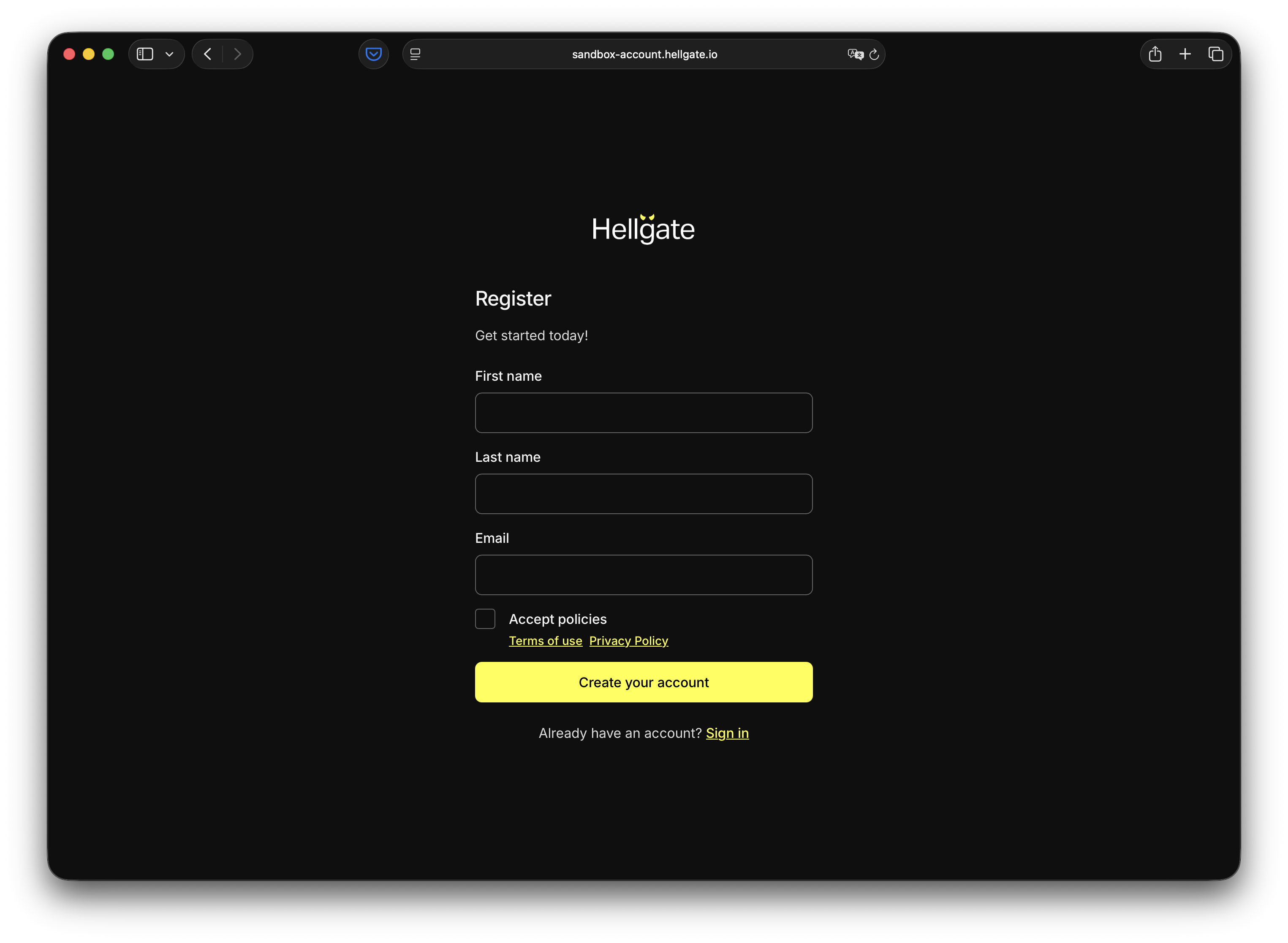
  <Step title="Click “Create one”">
    Enter your first and last name and email address, then accept Starfish’s policies.
    <Frame>
      <img src="https://mintcdn.com/starfishgmbhcokg/dfhj2Hm84A9ik5S0/images/commerce/v2/guides/sign-up/register.png?fit=max&auto=format&n=dfhj2Hm84A9ik5S0&q=85&s=644ad5c161413dad7c5407d5e085382f" alt="Register" width="3050" height="2234" data-path="images/commerce/v2/guides/sign-up/register.png" />
    </Frame>
  </Step>

  <Step title="Click “Create your account”">
    Check the email from step 2 for a security code and enter it.

    <Frame>
      <img src="https://mintcdn.com/starfishgmbhcokg/dfhj2Hm84A9ik5S0/images/commerce/v2/guides/sign-up/confirmation.png?fit=max&auto=format&n=dfhj2Hm84A9ik5S0&q=85&s=f0977421682954a841ce497a49187cf3" alt="Confirmation" width="3050" height="2234" data-path="images/commerce/v2/guides/sign-up/confirmation.png" />
    </Frame>
  </Step>

  <Step title="Set your password">
    Click **Continue**, then set and confirm your password.

    <Frame>
      <img src="https://mintcdn.com/starfishgmbhcokg/dfhj2Hm84A9ik5S0/images/commerce/v2/guides/sign-up/set-password.png?fit=max&auto=format&n=dfhj2Hm84A9ik5S0&q=85&s=0234e7a5545fe24105d70005a56b1ced" alt="Set Password" width="3050" height="2234" data-path="images/commerce/v2/guides/sign-up/set-password.png" />
    </Frame>
  </Step>

  <Step title="Choose second-factor method">
    Select your authentication method for the second factor.

    <Info>
      This guide describes the SMS path only.
    </Info>

    <Frame>
      <img src="https://mintcdn.com/starfishgmbhcokg/fao_mR6VDpBCxc3o/images/commerce/v2/guides/sign-up/verify-your-identity.png?fit=max&auto=format&n=fao_mR6VDpBCxc3o&q=85&s=d53383da7b66b8896d86864c4c6b014e" alt="Verify your Identity" width="3050" height="2234" data-path="images/commerce/v2/guides/sign-up/verify-your-identity.png" />
    </Frame>
  </Step>

  <Step title="Click “SMS” and enter your phone number">
    <Frame>
      <img src="https://mintcdn.com/starfishgmbhcokg/dfhj2Hm84A9ik5S0/images/commerce/v2/guides/sign-up/setup-mfa.png?fit=max&auto=format&n=dfhj2Hm84A9ik5S0&q=85&s=f42ceade6c7de752efdbce3a5f8900f5" alt="Setup MFA" width="3050" height="2234" data-path="images/commerce/v2/guides/sign-up/setup-mfa.png" />
    </Frame>
  </Step>

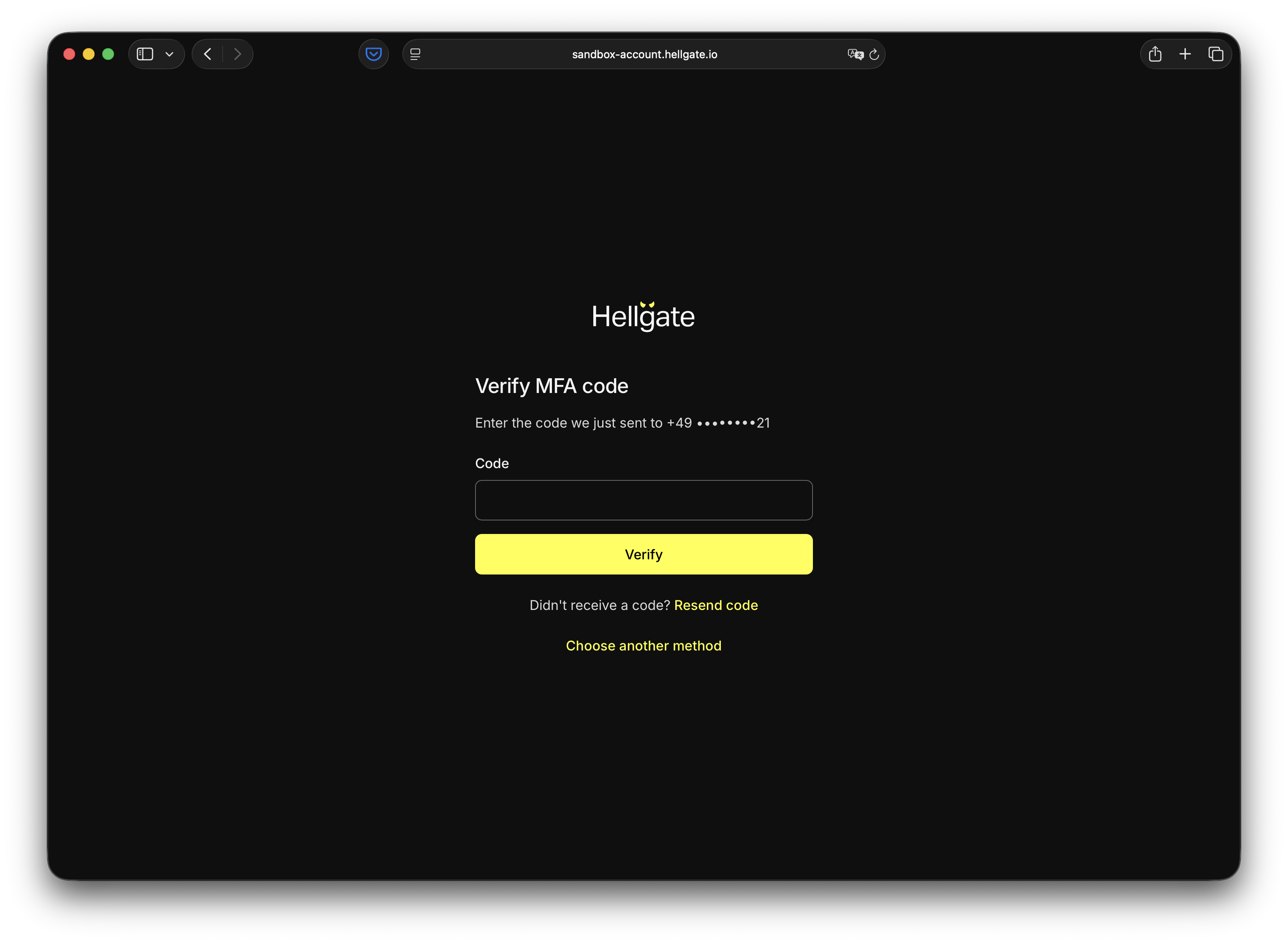
  <Step title="Enter the security code">
    Click **Continue**, then wait for the code on your phone and enter it.
    <Frame>
      <img src="https://mintcdn.com/starfishgmbhcokg/dfhj2Hm84A9ik5S0/images/commerce/v2/guides/sign-up/verify-mfa.png?fit=max&auto=format&n=dfhj2Hm84A9ik5S0&q=85&s=7d38eddd23cbc96ed3fa4fb36fc54579" alt="Verify MFA" width="3050" height="2234" data-path="images/commerce/v2/guides/sign-up/verify-mfa.png" />
    </Frame>
  </Step>

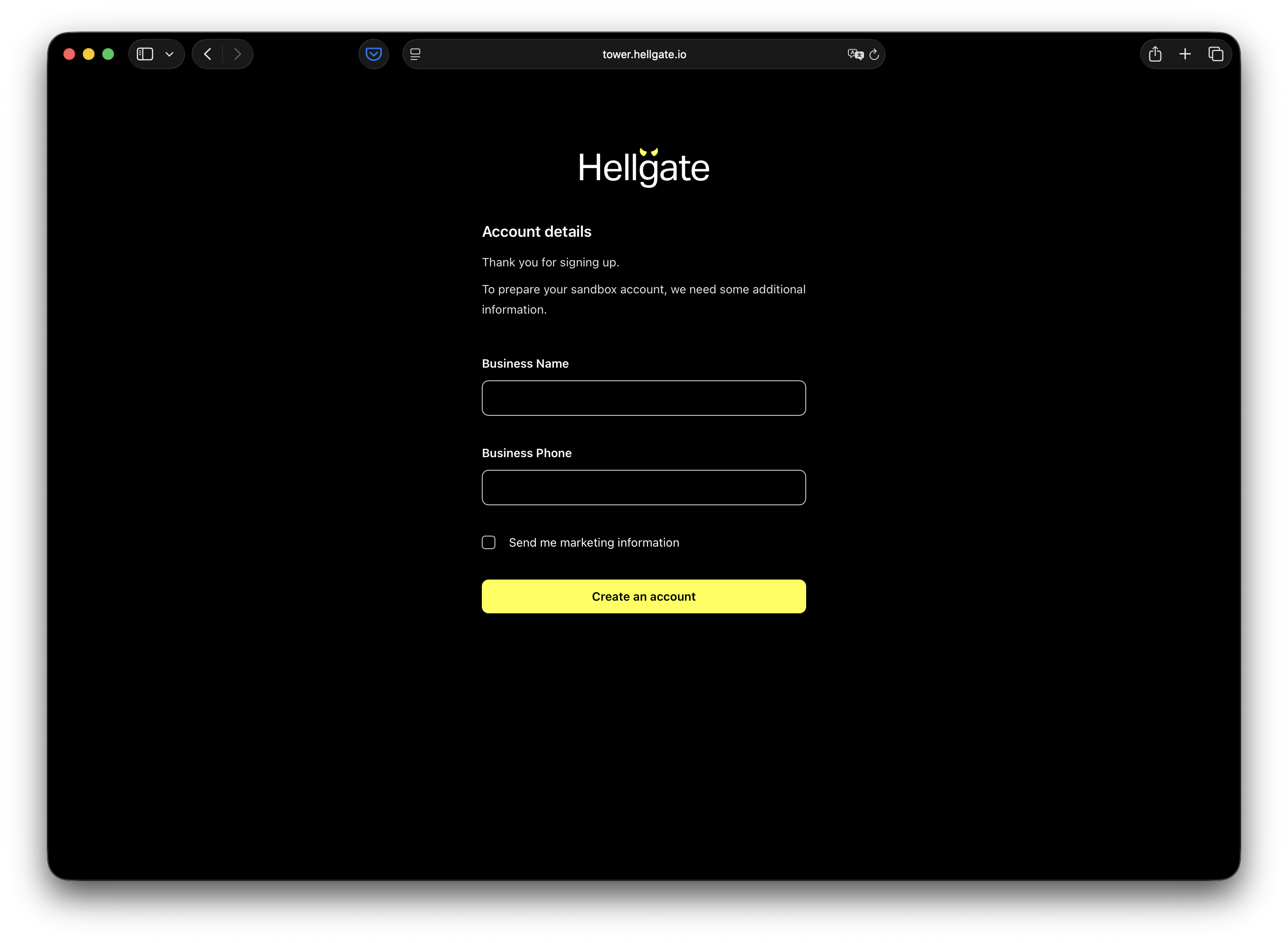
  <Step title="Complete account details">
    Click **Verify**, then enter your business name and business phone. You can optionally opt in to marketing.
    <Frame>
      <img src="https://mintcdn.com/starfishgmbhcokg/dfhj2Hm84A9ik5S0/images/commerce/v2/guides/sign-up/account-details.png?fit=max&auto=format&n=dfhj2Hm84A9ik5S0&q=85&s=848f797f0a803419d5b7dc3a8f6c0dc7" alt="Account details and business information form" width="3050" height="2234" data-path="images/commerce/v2/guides/sign-up/account-details.png" />
    </Frame>
  </Step>

  <Step title="Click “Create an account”">
    You’ll be redirected to your new Hellgate Commerce Test account. Next: [Payments](/products/commerce/v2/guides/payments) to view payment history and configuration.
  </Step>
</Steps>
